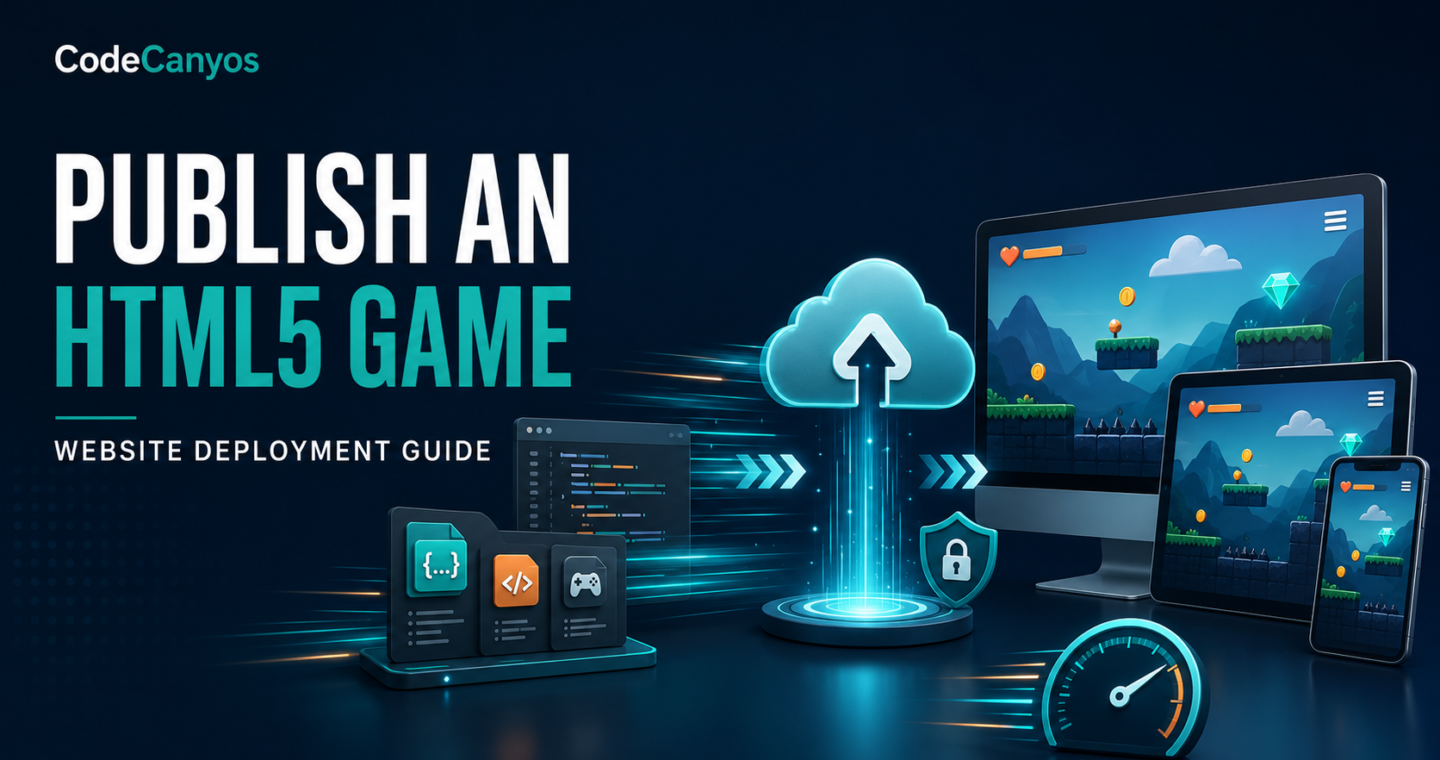
To publish an HTML5 game on a website, you need more than an index.html file. The production build must use correct asset paths, load efficiently, fit different screens and behave safely inside the surrounding site. Hosting headers, caching and browser restrictions can also change how a build behaves outside the developer’s machine.
This guide covers a reliable deployment workflow. If you are still selecting a project, start with the HTML5 game source-code buyer’s guide and compare the available HTML5 game templates.
1. Create a production build
Use the project’s documented export process. Production builds often minify scripts, compress assets and generate engine-specific files. Keep the editable source separate from the public upload. Do not expose project backups, source maps containing private code or configuration files that are not required by players.
Test the export through a local web server. Opening index.html directly from a file path can hide or create errors because browser security rules differ.
2. Inspect the build folder
A typical build contains an entry page, JavaScript, styles, images, audio and data files. Some engines add WebAssembly, service workers or compressed asset bundles. Remove editor backups and development-only files, but do not rename generated files unless the documentation says it is safe.
Check for hard-coded localhost URLs, seller domains, analytics IDs and API endpoints before upload.
3. Choose a clean public URL
Place the game at a stable path such as example.com/games/game-name/. A dedicated directory keeps assets organized and makes caching easier. Use a readable slug and decide whether the game will have its own landing page or open directly.
A landing page can provide instructions, screenshots, structured text and links to related content while the canvas remains focused on play.
4. Upload with the correct directory structure
Preserve relative paths. If the build expects assets/ beside index.html, moving only the entry file will break loading. Upload in binary-safe mode and verify file-name capitalization because Linux hosting is case-sensitive.
After upload, open the browser developer console and network panel during testing. Missing files, blocked requests and incorrect content types usually appear there.
5. Configure MIME types and compression
JavaScript, WebAssembly, JSON, fonts and audio need suitable content types. Engine documentation may require server rules for compressed files. Enable Brotli or gzip where supported, but do not serve a precompressed file with the wrong encoding header.
Large games benefit from long-lived caching for versioned assets. Keep the entry HTML on a shorter cache so new releases can point to updated files.
6. Make the embed responsive
Use a wrapper that preserves the intended aspect ratio and limits extreme widths. If the game is embedded in an iframe, provide an accessible title and allow only the permissions it needs. Test portrait and landscape orientation, browser zoom and mobile address-bar changes.
Do not trap page scrolling unintentionally. Full-screen controls should be obvious, and the game should recover when full-screen mode ends.
7. Add loading and failure states
Players should see progress or a clear loading message while large assets download. If WebGL, audio or storage is unavailable, show a helpful fallback instead of a blank rectangle.
Delay optional analytics and advertising until the core scene can load. Third-party failures should not prevent the game from starting.
8. Secure client-side configuration
Anything delivered to the browser can be inspected. Never place database passwords, private API secrets or unrestricted service keys in JavaScript. Use a server endpoint for sensitive operations and validate requests there.
Apply a Content Security Policy carefully after listing required sources. Use HTTPS for the page and every asset to avoid mixed-content blocks.
9. Add analytics with restraint
Useful events include game start, level completion, failure point, restart and session duration. Collect only what supports product decisions, document the data flow and implement consent where required.
Keep analytics names stable across releases so trends remain comparable.
10. Optimize performance
- Resize and compress images for their actual display size.
- Use efficient audio formats and avoid unnecessary long tracks.
- Load later levels only when needed.
- Remove unused assets and libraries from the production build.
- Test CPU, memory and input latency on a mid-range phone.
Publishing on WordPress
A WordPress site can host a game build in a dedicated uploads or custom directory and embed it in a page. Avoid pasting an entire generated project into the visual editor. Keep files organized, back them up and test caching or security plugins after each release.
If an iframe is used, set its source to the game build and give the containing page enough text to explain controls, audience and purpose. Confirm that the active theme does not force a height that clips the game.
Pre-launch test matrix
Test current Chrome, Edge, Firefox and Safari where your audience uses them. Include Android and iOS browsers, slow network simulation, private browsing, denied storage, muted autoplay and repeat sessions. Verify 404 logs and console errors.
Ask a new player to start without assistance. If instructions or controls are unclear, fix them before promoting the page.
After launch
Monitor loading failures, completion rates and device-specific crashes. Keep a versioned source archive and a rollback copy of the previous production build. Update dependencies deliberately and retest the full matrix after major changes.
For code selection and licensing checks, return to the complete HTML5 guide. A stable launch comes from a reproducible build, predictable hosting and real-device testing.